VKB Visualization
The knowledge graph in a browser — how to open the viewer, what it shows, and what to check when it shows nothing.
Open it
That opens 127.0.0.1:12436/viewer/coding. The first run builds the viewer (about half a minute); after that it opens at once.
vkb okb          # the operational knowledge base (VOKB) instead
vkb --no-open    # just print the URL
vkb --build      # rebuild, e.g. after changing the viewer's sources
vkb needs the knowledge feature (the learning tiers). There is no server to start or stop: obs-api — always running with a learning tier — serves the viewer.
What you see
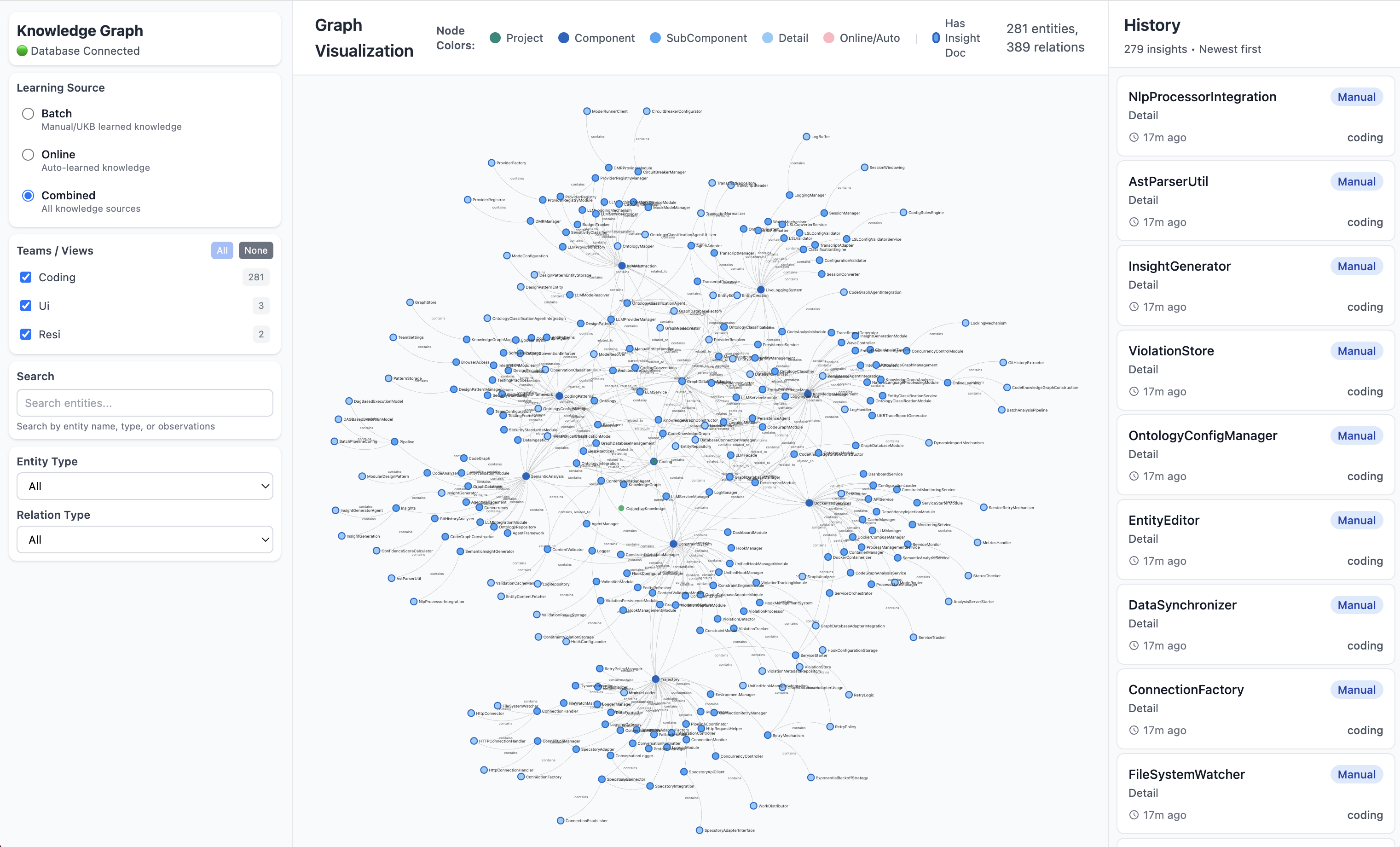
Entities as a graph — projects, components, insights, details — filterable by team, type, learning source and detail level. Click a node for its details and relations; where an entity has a full insight document, a button opens it rendered, with diagrams.
Teams
The Teams / Views rail on the left starts from the selection in Dashboard → Teams and changes it both ways. See Teams & Shared Learning.
How it is served
The viewer is a static single-page app (integrations/unified-viewer). vkb:
- checks the
knowledgefeature is on (coding-features status); - builds the app if
dist/is missing or older than any of its sources — dependencies are installed first if needed; the build log is.logs/vkb-build.log; - checks obs-api answers on
:12436; - opens
http://127.0.0.1:12436/viewer/<system>(macOSopen, Linuxxdg-open, WSLwslview; otherwise it prints the URL).
obs-api serves the build under /viewer/ and every viewer route falls back to the app's shell; the app reads the graph from the same obs-api. The installer builds the viewer once for learning tiers, so the first vkb is usually instant.
Exploring the graph
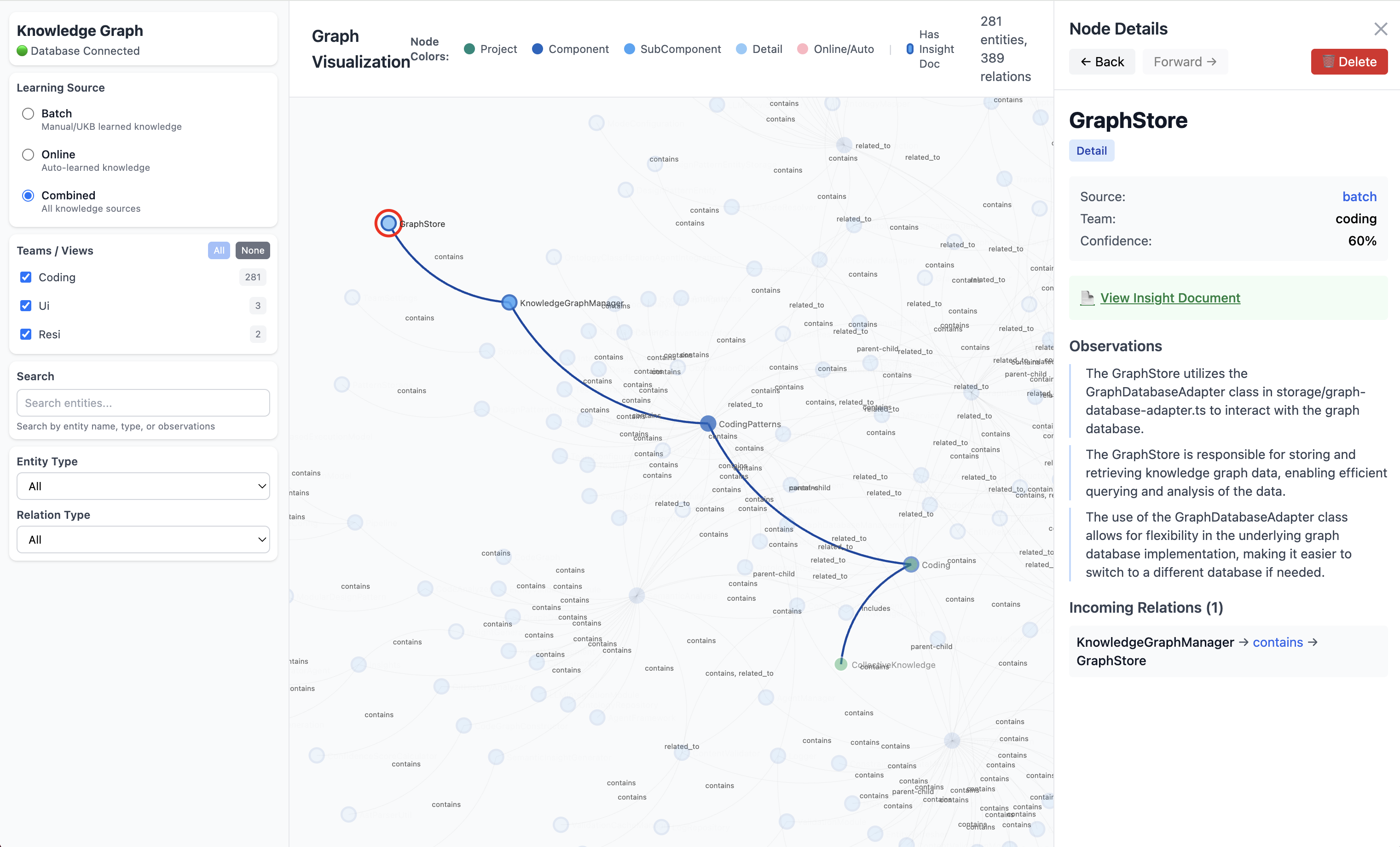
| Panel | Does |
|---|---|
| Filters (left) | search, detail level (Full · Overview · Summary), legend, teams / projects / views, ontology class, source |
| Canvas | the graph; drag to pan, scroll to zoom, click a node to select it |
| Entity / History (right) | the selected node's details, or the newest insights |
| Timeline (bottom) | when knowledge was learned; click a bar to jump to it |
Reading the Graph explains the detail levels.
When it shows nothing
| Symptom | Check |
|---|---|
| "This command needs the 'knowledge' feature" | coding-features set knowledge on (or a learning tier) |
obs-api is not answering on :12436 | curl -s localhost:12436/health; Dashboard → Health |
| "The knowledge viewer has not been built yet" | vkb --build; the log is .logs/vkb-build.log |
| "Showing 0 of 0 nodes" for a long time | curl -s 'localhost:12436/api/v1/entities?limit=1' — is the store hydrated? |
| Old UI after an update | vkb --build |
Developing the viewer
cd integrations/unified-viewer
npm run dev            # http://127.0.0.1:5173/viewer/coding, hot reload
npm test               # vitest
The dev server reads the same obs-api; vkb --build produces what everyone else sees.
Pieces
| Piece | Where | Role |
|---|---|---|
bin/vkb | coding repo | feature gate, build-if-stale, obs-api check, open the browser |
integrations/unified-viewer | coding repo | the React app (Vite); dist/ is its build, gitignored |
lib/viewer/mount.mjs | obs-api (:12436) | serves dist/ under /viewer/, the app shell for every route, / → /viewer/coding |
obs-api /api/v1/*, /api/coding/*, /api/teams | obs-api | the data the app reads |
The app's production build uses base /viewer/ (vite.config.ts), so its assets resolve under /viewer/assets/ and never collide with obs-api's own routes. Hashed assets are cached for good; the shell (index.html) is never cached, so a rebuild shows on the next load.
Systems
| URL | Shows | Backend |
|---|---|---|
/viewer/coding (VKB) | the coding knowledge graph | obs-api :12436 |
/viewer/okb (VOKB) | the operational knowledge base | OKM :8090 |
Backends are fixed at build time (src/config/system-endpoints.ts); override with VITE_BACKEND_CODING_URL / VITE_BACKEND_OKB_URL when building. Loopback addresses are 127.0.0.1, not localhost — see the comment there for the Chrome hang that taught it.
When the build is redone
vkb rebuilds when dist/index.html is missing, when --build is given, or when any of src/, index.html, vite.config.ts, package.json is newer than it. A missing node_modules/ is installed with npm ci first. The build is vite build only — not npm run build, which type-checks first and would let a type error anywhere in the viewer keep everyone from opening it. Output goes to .logs/vkb-build.log.
Feature gating
vkb is guarded by lib/features/require-feature.sh on knowledge (exit 2 with the reason and the fix when it is off; tests/features/cli-and-rules-gating.test.mjs). The installer step install_unified_viewer runs for knowledge only and appears in the impact manifest.
History
Until 2026-09-08 vkb started a separate server, vkb-server, on :8080, with start/stop/status/logs/fg/port subcommands. That server was retired when the unified viewer replaced it (its experiment and kgbench APIs moved to obs-api first), and with it went the command — leaving the viewer reachable only through its dev server until vkb came back as this launcher.